Your X3, your way.
Arrange its screens, add your own, follow feeds and give it buttons that do things. No code needed.
Free · build in the app, publish over Wi-Fi
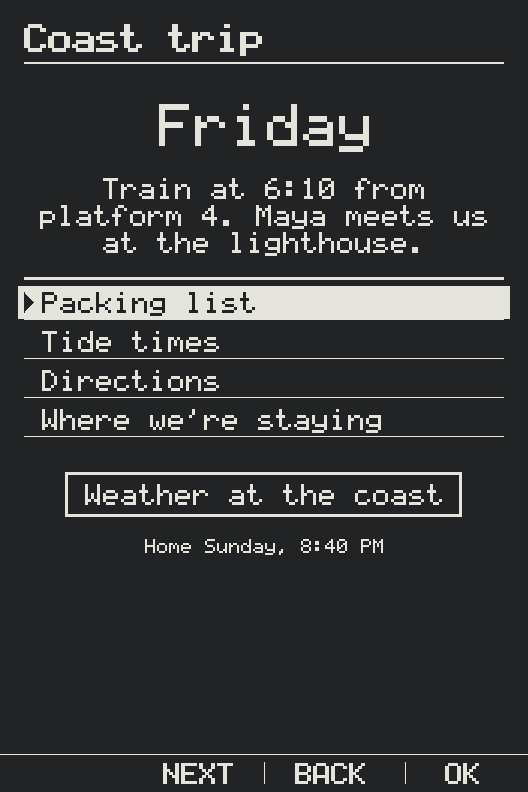
Build screens without code.
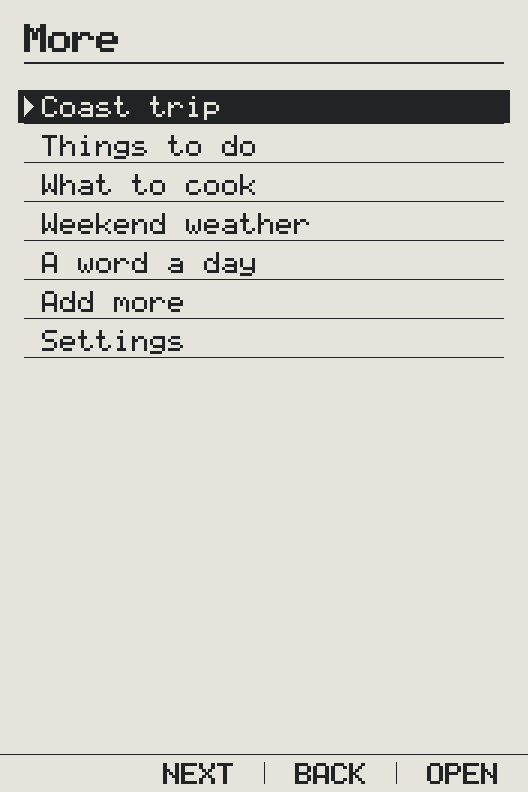
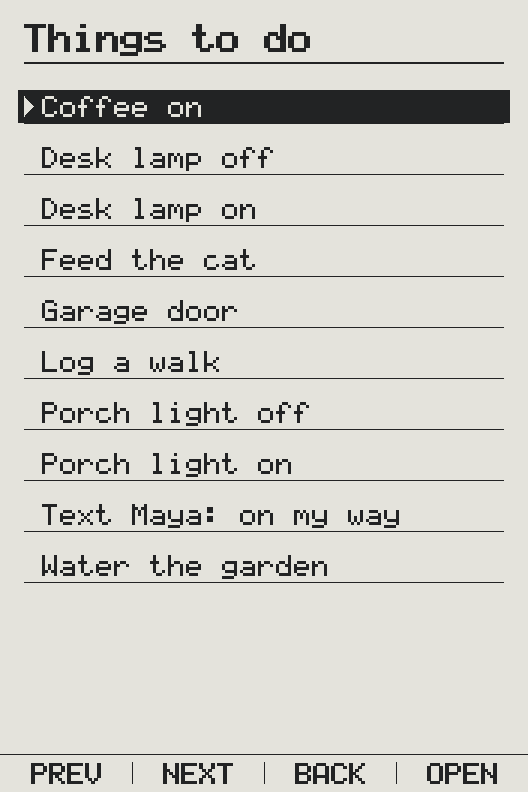
Pick a line to move it, reword it or remove it, and add rows, text, headings, dividers and buttons. Home is Deckle’s room on your X3, so rows you add to Home go on More, one press away. Try it here. The screen on this X3 is drawn by your X3’s own renderer, as the app’s preview is.
- RowCoast trip
- RowThings to do
- RowWhat to cook
- RowWeekend weather
- RowA word a day
- Or with markupRather write it yourself? Screens are simple markup, and the app keeps a reference right beside it.
- Checked, and undoableEvery change is checked before it’s made. Undo takes back the last change.
- Publish over Wi-FiNo cable. Your X3 picks up new screens the next time you wake it.
Follow what you care about.
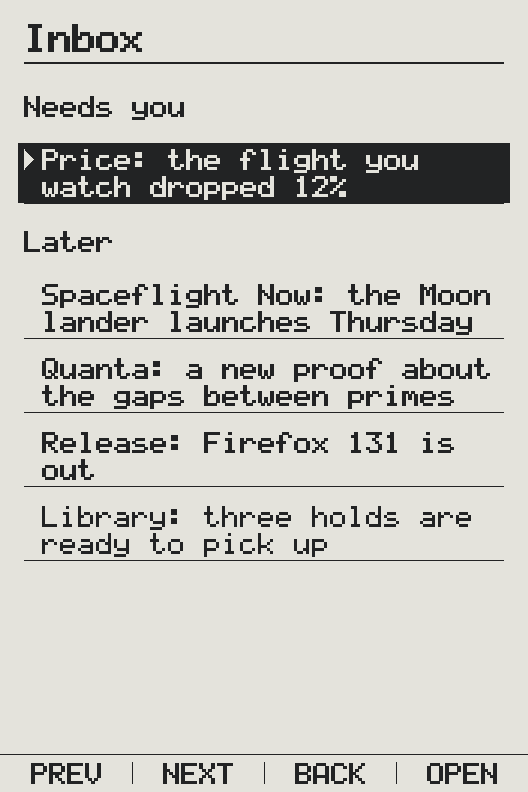
Pick news, releases and more from a catalog of feeds, each one checked to work, or watch any page you like, such as a price you’re waiting on. Deckle looks every hour and brings the changes that matter into your Inbox.
Say what you care about, and only changes about that come through.
- Quanta MagazineMath, physics, biology and CS
- Spaceflight NowLaunches and missions
- Science NewsIndependent science journalism
- Scientific AmericanScience for everyone
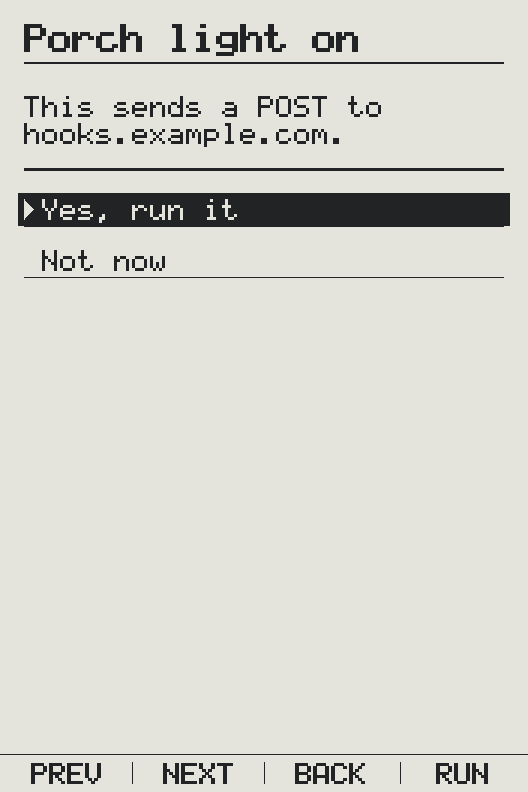
Buttons that do things.
Give your X3 buttons that call a web address you choose, like a smart-home webhook: the porch light, the coffee, a note that you went for a walk. You set each one up in the app.
- Two presses. The first names what will happen; the second does it. A stray click never runs anything.
- A plain answer. Your X3 says whether it worked, and what came back.
Send it now. Read it later.
Found something long? Send the link from your phone or computer. Deckle fetches the article, keeps just the words, and cuts it into pages. Notes work too.
-
Send it to your X3.
A link is cut into pages. A note is kept as it is.
A link
https://notebooks.example/the-page-waitsSendSent. “The paper notebook” is waiting on your X3.
Send itA link or a note, from your phone or computer.
-
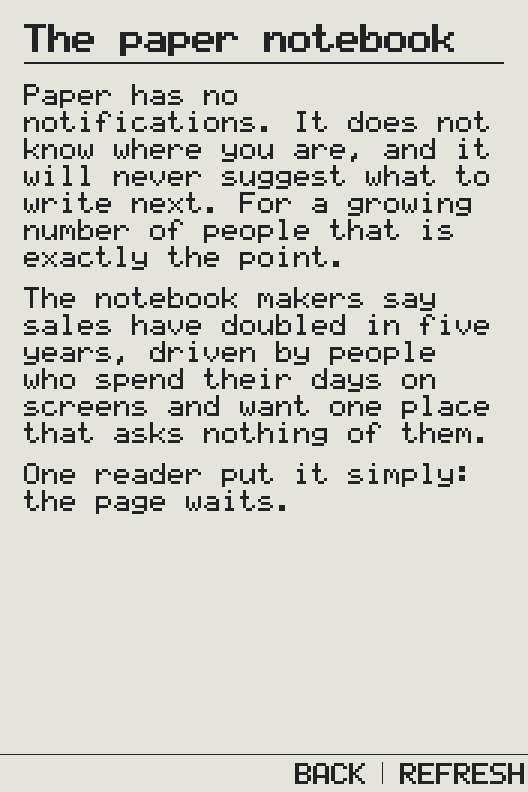
Read it laterIn your Inbox on your X3, the next time you wake it.
Bigger type, or white on black.
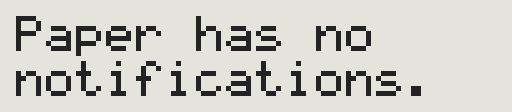
Choose Normal, Large or Largest text and turn on dark mode, right in Settings on your X3. Every screen follows, including the ones you make.
-
NormalThe most on a page.

-
LargeA little easier on the eyes.

-
LargestEasy to read at arm’s length.
-
Dark modePale ink on a dark page, at any size.
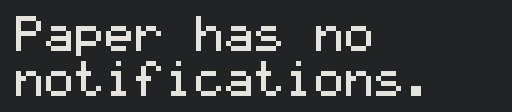
Cut from your X3’s panel at its own size: every pixel is one it draws.
Start with a blank page.
Install Deckle, sign in, and build the first screen that’s yours.