Install Deckle on your X3, X4 Classic or X4 Pro.
From a boxed XTEINK X3, X4 Classic or X4 Pro to your own calm screens in about 15 minutes, start to finish, all from this page.
This browser can’t install Deckle. Open this page in Chrome or Edge on a computer. No computer with Chrome or Edge? An X3 can also take Deckle from its memory card.
Before you start: your books stay on the card, and Deckle opens them (EPUB without DRM, and plain text). The firmware your X3 runs now, the original or CrossPoint, stays in its other slot, one button away, until you accept Deckle’s first Wi-Fi update, which replaces it. The full copy you can save in step 1 puts it back after that.
Have an X4 Classic or X4 Pro? Choose it in step 1. It takes one extra step, starting it in its download mode by hand, and this page always saves a full copy of it before anything is written. On the X4 Pro you tap what you want, and its light is a tap of Power.
Have an X4? Not yet. Deckle isn’t ready for the X4: there’s a memory problem to fix first, and we’ll post on the community board when it is. Installed it before? Choose X4 in step 1 and this page switches it back to its own firmware.

What you need
- Your X3, X4 Classic or X4 Pro, and its microSD card, charged, with the card in it. The card keeps its Wi-Fi and key.
- Chrome or Edge on a computer, and a USB-C data cable. Some charge-only cables carry no data, and other browsers can’t talk to USB devices.
- A phone, to give your X3 your Wi-Fi.
- 2.4 GHz Wi-Fi with no sign-in page. Your X3 can’t join a 5 GHz network, or one that asks you to sign in, like a hotel’s.
- A Google account, to sign in to Deckle.
Step 1: Install the firmware
About 5 minutes, or 10 with a backup.
Your X3 has two slots for firmware. This page reads which one it’s running and puts Deckle in the other, so the firmware it runs now stays where it is. Running it again later updates Deckle in its own slot.
- Plug the X3 into this computer and wake it: hold Power for three seconds.
- Choose An XTEINK X3 below, press Connect, and choose it in the list (it shows as USB JTAG/serial debug unit).
On an X4 Classic or X4 Pro, choose An XTEINK X4 Classic or An XTEINK X4 Pro below and follow the steps it shows: its own firmware doesn’t answer over USB, so you start it in its download mode first.
- Choose An XTEINK X4 Classic below.
- Start your X4 Classic in its download mode, as the steps beside this say: its own firmware doesn’t answer over USB.
- Press Connect and choose it in the list.
Deckle for the X3: …. The X3 drops off USB whenever it restarts and doesn’t come back on its own: if the page says the connection was lost, hold Power for three seconds and press Connect again.If the page says the connection was lost, start your X4 Classic in download mode again and press Connect. Nothing is half-written that a second run doesn’t fix.
Connect said nothing?
If the list was empty, or nothing answered, try these in order. Nothing is written until you press Install.
- Another cable. Many USB-C cables only charge and carry no data. One that came with a phone, or that moves photos off one, does.
- Wake it. An X3 that’s asleep isn’t on USB. Hold Power for three seconds, then press Connect again.
- Download mode. Hold the left side key, tap Power, and keep holding the key for about 5 seconds. It worked when the list shows USB JTAG/serial debug unit. If the list is still empty, its own firmware is running: try the keys again.
- Another USB port, straight on the computer rather than through a hub or a dock.
- Still nothing from an X3? Many X3s, especially from AliExpress, had installing over USB switched off at the factory, for good. Nothing is written, and it keeps working as it did. Those can still take Deckle from the memory card.
This browser can’t reach USB devices, so Connect is off. Open this page in Chrome or Edge on a computer; both are free. The terminal steps below write the firmware from anywhere, but their last step, choosing which slot the X3 starts from, still needs Chrome or Edge.
Start your X4 Classic in download mode:
- Plug it into this computer.
- Hold the left side key, tap Power, and keep holding the key for about 5 seconds. The screen stays as it was.
- Press Connect and choose it in the list (USB JTAG/serial debug unit).
It worked when it shows in that list and this page says Connected, with its two slots. An empty list means its own firmware is still running: start it in download mode again.
This page checks it’s an X4 Classic before anything is written, saves a full copy of it to your downloads (16 MB, about 5 minutes), puts Deckle in the slot its own firmware isn’t in, and restarts it.
Deckle isn’t ready for the X4 yet, so this page won’t install it. Installed it before? Press Connect, then Switch back to the other slot: your X4’s own firmware is still there, unless Deckle has updated itself over Wi-Fi.
Put back a full copy
Choose the file this page saved before installing (xteink-backup-….bin). Writing it back takes about 10 minutes and replaces everything on the device, Deckle included, except the small part that starts it.
Want a hand? Send what happened to the person who runs Deckle. Only what’s under What’s sent goes, with your email if you add one; the chip’s MAC address is left out.
What’s sent
Details
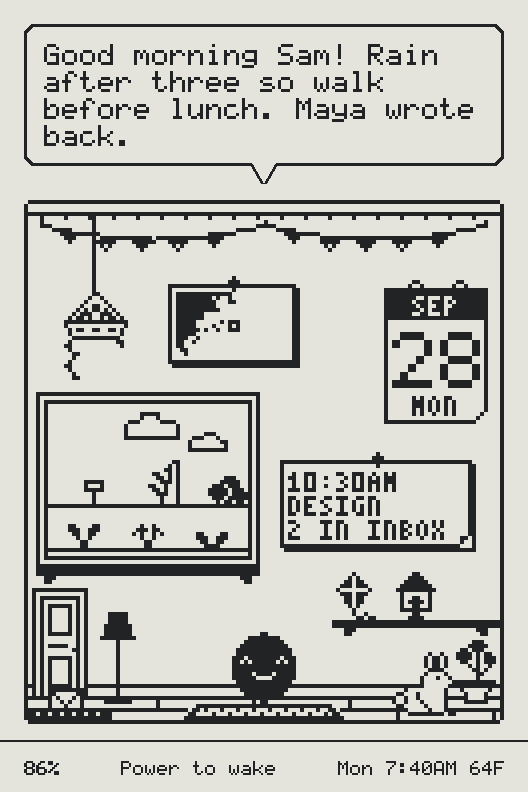
Step 2: Give it your Wi-Fi
About 2 minutes.
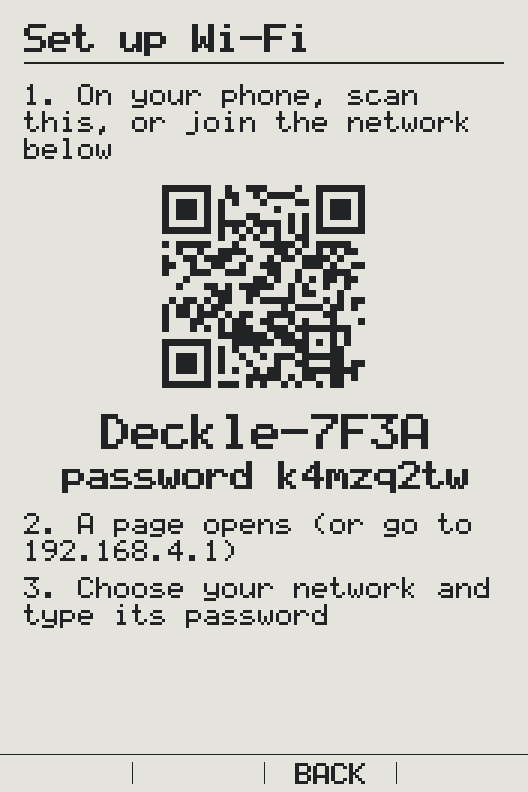
- Unplug nothing; just hold Power for three seconds. With no Wi-Fi yet, the X3 opens its own network, Deckle- and four letters or numbers, and shows a QR code, and the network’s name with a password under it.
- Scan the QR code with your phone’s camera, or join that network with the password the X3 shows. A page opens by itself; if it doesn’t, go to
192.168.4.1. - Choose your Wi-Fi, type its password and press Save. The X3 restarts and joins it. If it comes back to Set up Wi-Fi saying it could not join, check the password, and that the network isn’t 5 GHz only.
Step 3: Connect your X3
About 1 minute.
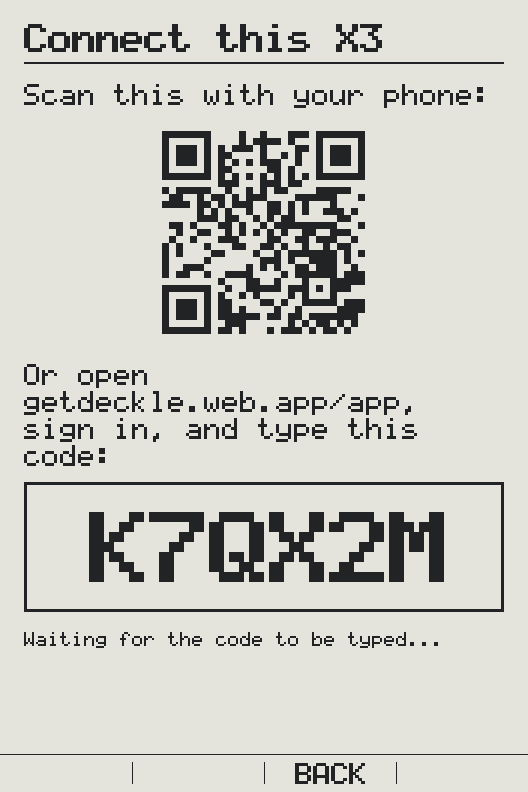
- Once on Wi-Fi, the X3 shows Connect this X3, a QR code and a six-character code.
- Scan the QR code with your phone: Deckle opens with the code typed in. Sign in and press Connect. Or open Deckle, sign in, and type the code when it asks for it.
- The X3 says Connected: press OK on it to start. If a code runs out while you wait, the X3 shows a new one by itself.
Step 4: Set it up
As long as you like.
In Deckle, the Get started list walks you through the rest, and ticks each step off as it happens:
- Say where you live, for the weather and the morning briefing.
- Meet Deckle, the X3’s companion. Choose its look and name, and tell it about yourself: it writes the briefing, answers what you ask on the device, and suggests replies to letters.
- Connect a calendar or mail, and pick feeds to watch. What arrives is sorted into what needs you and what can wait.
- Build your screens, with or without code, then Publish. Your X3 picks them up the next time you wake it, or from Settings, then Check for updates.
On the device, once its keys are set (step 3): PREV and NEXT move, OK opens, BACK returns.
Switching back
Didn’t save a full copy? Before you accept Deckle’s first Wi-Fi update, run step 1 again and tick Save a full copy: the firmware your X3 ran before Deckle is still in its other slot, so the copy holds it.
Until Deckle’s first Wi-Fi update, the firmware your X3 ran before Deckle is still in its other slot. Connect above and press Switch back to the other slot. It changes which slot the X3 starts from and writes nothing else, so Deckle stays in its slot and running the installer again returns to it. That firmware asks for your Wi-Fi again: Deckle clears every Wi-Fi password the chip kept.
That update asks before it goes ahead, because it replaces that firmware. After it, the full copy you saved in step 1 is the way back: write it over everything (terminal steps below), and your X3 is exactly as it was before Deckle.
If the X3 stops responding: hold Power and Back for ten seconds, release, then hold Power for three. If it still doesn’t appear, press the small recessed reset button at the top left, then hold Power for three seconds.
On an X4 Classic or X4 Pro, it works the same way: start it in download mode (hold the left side key, tap Power, keep holding the key for about 5 seconds), choose An XTEINK X4 Classic or An XTEINK X4 Pro in step 1, press Connect, then Switch back to the other slot. It restarts into its own firmware. After Deckle’s first Wi-Fi update, the full copy the installer saved puts it back as it came: its terminal command is below.
From the memory card instead
For an X3 that never answers Connect, or when there’s no Chrome or Edge to hand: all it takes is a way to copy a file onto its microSD card, like a card reader. It’s for the X3 only, and we’ve tested it from XTEINK’s original firmware only, not from CrossPoint or other firmware.
- Download deckle-x3.bin and rename it
update.bin. - Copy it to the top of your X3’s card, not into a folder, and put the card back in the X3.
- Let XTEINK’s original firmware install it, as it installs its own updates.
- Then carry on from step 2, Give it your Wi-Fi.
You can’t save a full copy of your X3 this way, so there’s no copy to put back later.
From a terminal instead
For Linux, Safari, Firefox, or if you prefer esptool
Install esptool (pip install esptool) and download deckle-x3.bin (for the X3). Find the port (ls /dev/cu.usbmodem* on a Mac, ls /dev/ttyACM* on Linux, a COM port on Windows) and wake the X3 before every command.
Save a full copy, then read the partition table and list the slots:
esptool --port PORT read-flash 0 0x1000000 xteink-backup.bin
esptool --port PORT read-flash 0x8000 0xc00 table.bin
python3 -c "import struct;d=open('table.bin','rb').read();[print(d[i+12:i+28].split(b'\0')[0].decode(),hex(struct.unpack('<I',d[i+4:i+8])[0])) for i in range(0,len(d),32) if d[i:i+2]==b'\xaa\x50']"
Write it to the slot your X3 isn’t running: app1 (0x780000) if it has never updated. Not sure? Press Connect above: it lists both slots and writes nothing until you press Install. Then check it:
esptool --port PORT write-flash OFFSET deckle-x3.bin
esptool --port PORT verify-flash OFFSET deckle-x3.bin
Then make the X3 start from that slot. From Chrome or Edge on any computer, the installer at the top of this page finishes the job. To restore the full copy: esptool --port PORT write-flash 0x0 xteink-backup.bin.
Never write to addresses below 0x9000 except when restoring your full copy: that is the bootloader, and the X3 has no button to recover it.
On an X4 Classic
Download deckle-x4c.bin (for the X4 Classic only), and start it in download mode before every command: hold the left side key, tap Power, and keep holding the key for about 5 seconds. Every command names the chip, so esptool stops if it’s anything else.
Save a full copy first, and keep it:
esptool --chip esp32s3 --port PORT read-flash 0 0x1000000 xteink-x4c-backup.bin
An X4 Classic as it ships runs app0, and its app1 (0x7f0000) is empty: that’s where Deckle goes. Not sure which it runs? Press Connect above: it lists both slots and writes nothing until you press Install.
esptool --chip esp32s3 --port PORT write-flash 0x7f0000 deckle-x4c.bin
esptool --chip esp32s3 --port PORT verify-flash 0x7f0000 deckle-x4c.bin
Then the installer at the top of this page, from Chrome or Edge, makes it start from that slot. To restore the full copy: esptool --chip esp32s3 --port PORT write-flash 0x0 xteink-x4c-backup.bin.
Questions or trouble? Write to us; you don’t need an account. Once you’re signed in, Deckle also shows what your X3 last reported.