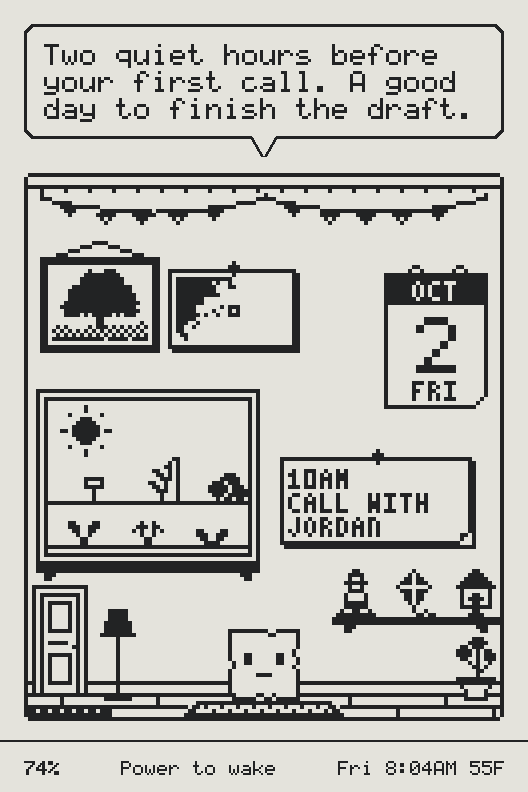
Your day, on paper.
Free firmware for the XTEINK X3, X4 Classic and X4 Pro. Your sleep screen becomes a small room where Deckle lives, with your day at a glance. It reads your books, too.
Installs from a computer with Chrome or Edge and a USB data cable · about 15 minutes
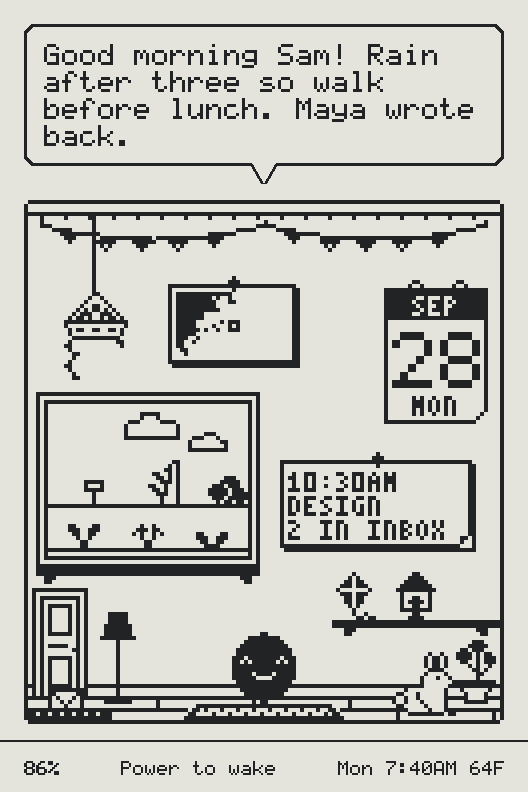
Quiet all day. There when you look.
Your X3 doesn’t buzz, blink or ask for anything. Pick it up, and your day is on the screen.
-
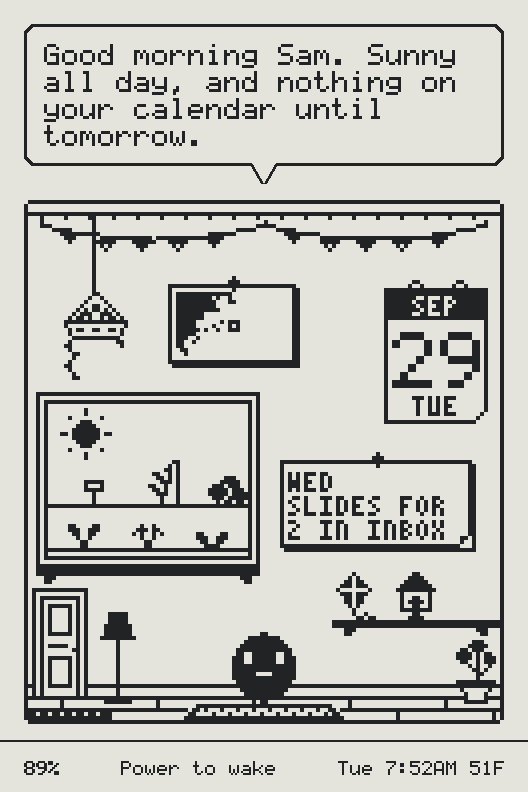
Good morning
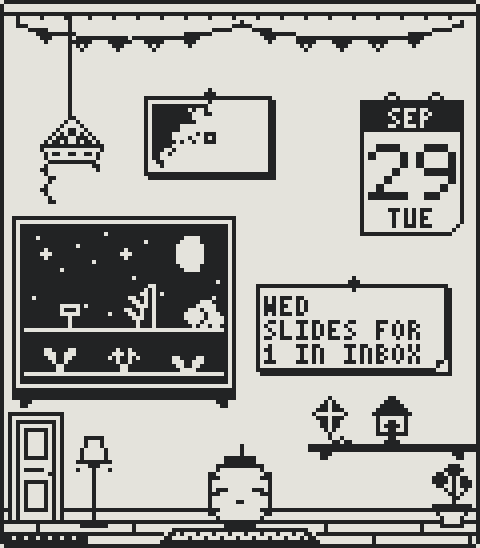
The weather in Deckle’s window, today on the calendar, and a note with what’s next and what’s in your Inbox. Your X3 wakes itself to keep the room up to date.
-
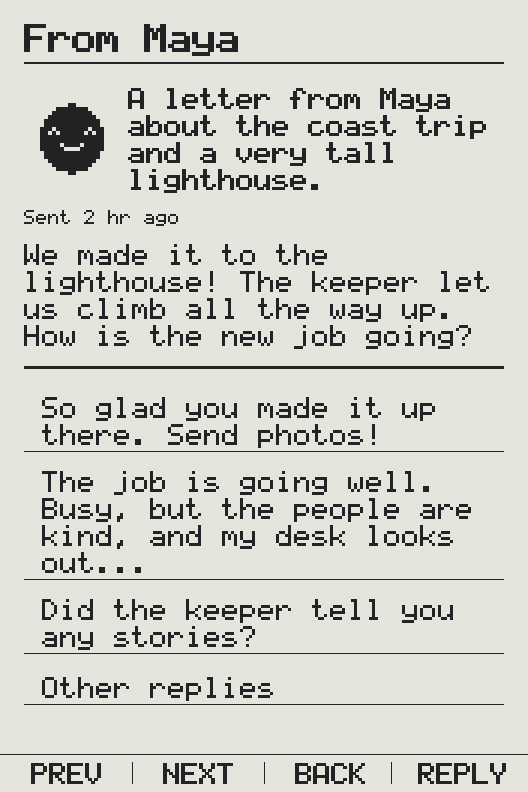
A letter from Maya
She made it to the lighthouse. Deckle drafted three replies; pick one with a button.
-
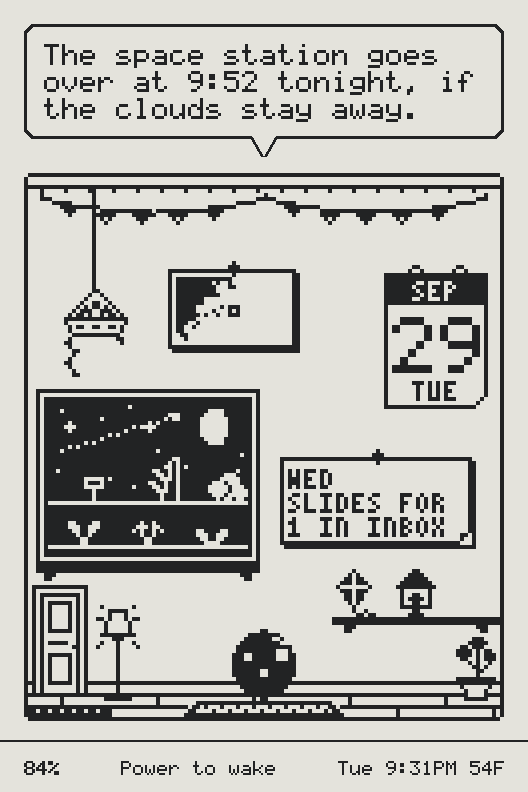
The space station, tonight
On a clear night the window shows the moon and stars, and the space station before a pass you can see. Deckle says when to look up.
One calm page each morning.
Deckle prints your morning paper and sets the day out in one place: a few stories from the feeds you follow, who wrote, your next event, what else needs you, and the weather.
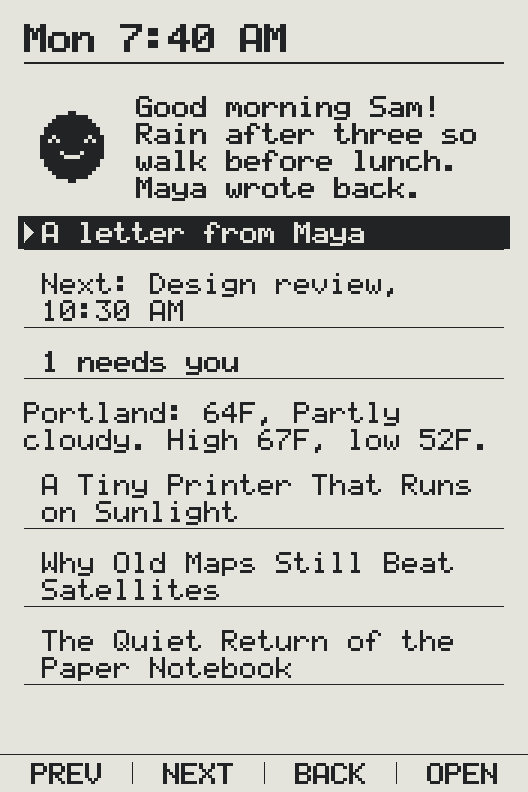
A small friend who lives on your X3.
Deckle says good morning, keeps an eye on things and tells you what it notices, one line at a time. It writes you letters, dreams at night, and makes things while your X3 is put down. Choose from twenty‑three looks, twelve to start with and eleven found along the way, and give it a name of your own.
-
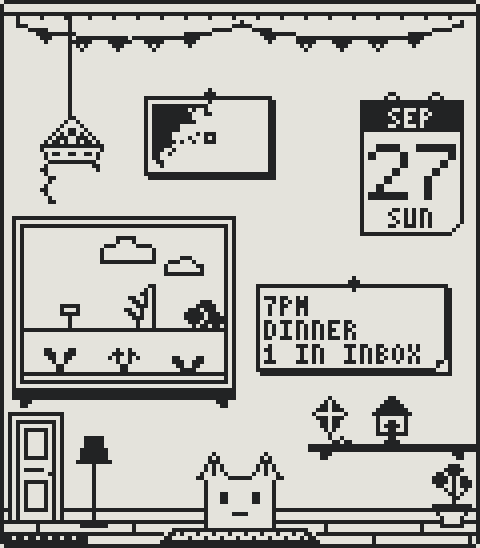
Paper fox -
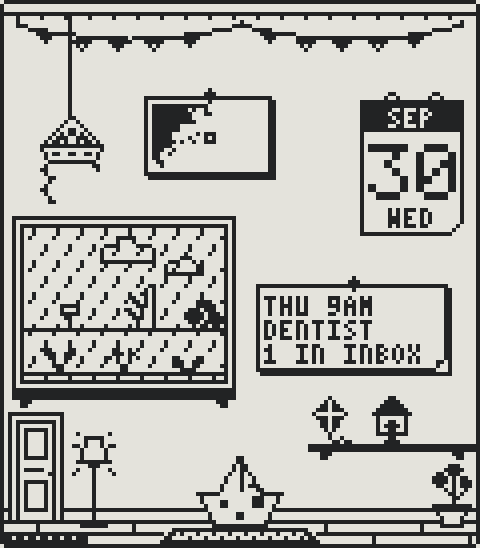
Boat -
Lantern


An eye on the world outside.
Deckle follows a few real things near you, and each one has a place in its room. Even its visitors come from real sightings, when there are any: a robin comes by after someone near you has spotted one.
-
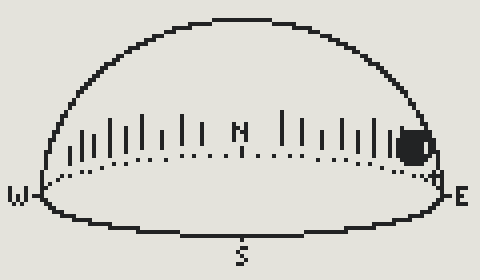
Tonight’s sky
Space station passes, the moon, the bright planets and any chance of aurora. At night its window shows the real moon and stars.
-
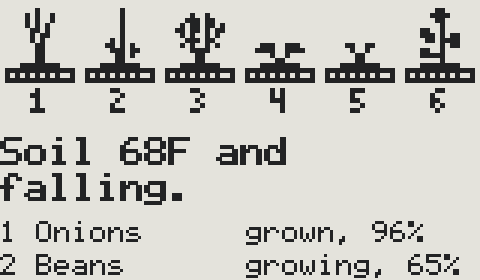
The garden
Six beds outside its window, sown and grown by the real soil temperature where you live, until the first hard frost.
-
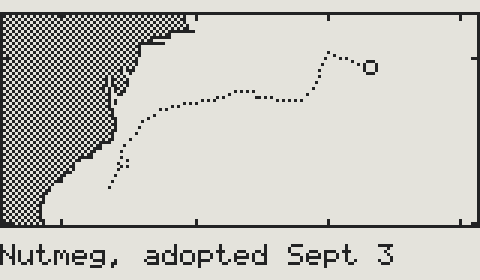
The drifter
Deckle adopts a real drifting buoy in the ocean nearest you, gives it a name, and pins its map to the wall.
-
Prints
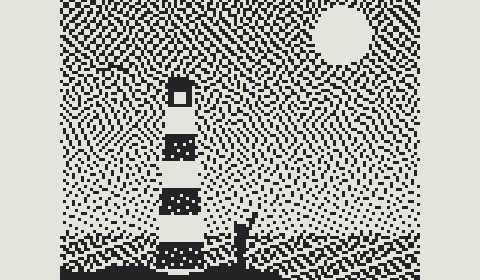
Send a photo from your phone. It’s developed there into a one-bit print, hung on Deckle’s wall, and Deckle says what it sees.
Mail, already sorted.
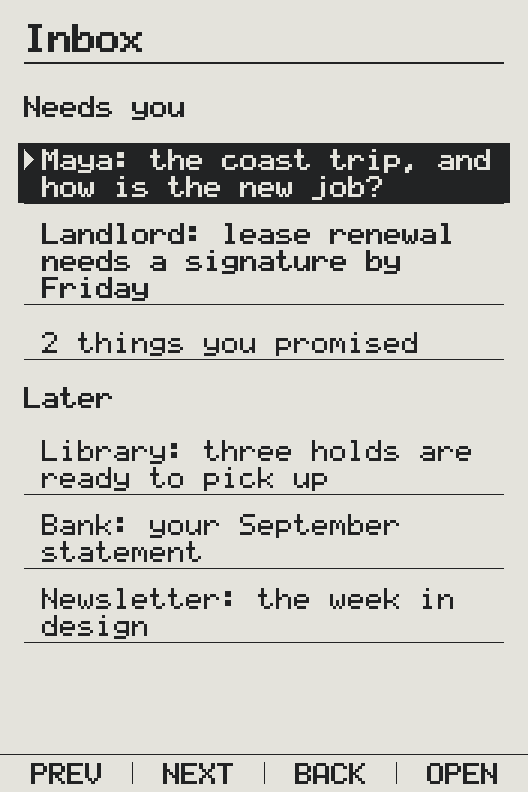
Connect Gmail and your other mailboxes, and Deckle sorts what arrives in your Inbox into what needs you and what can wait. Promises you’ve made go on a list of their own, and your calendar tells it what’s next.
- Needs youMaya’s letter, and a lease to sign by Friday.
- LaterLibrary holds, a statement, a newsletter.
- PromisedThe slides for Jordan, by Wednesday.
Letters from friends.
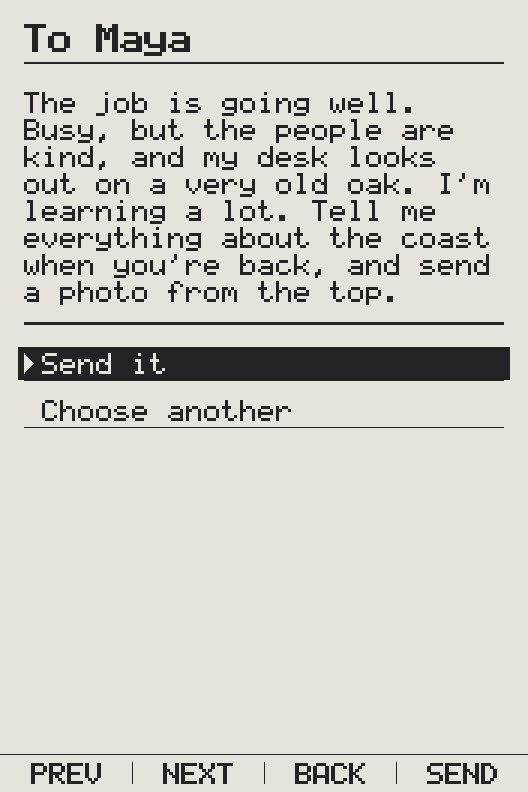
Friends with an X3 write to yours. Deckle reads each letter and drafts three replies, so you can answer with a button. When there’s more to say, write a longer one on the web.
Friends without an X3 can write too, from a private link you send them. Deckle writes to you now and then, and when you write to a friend with an X3, it carries your letter and stays the night at theirs.
Write to Sam
It arrives on a small paper-like screen on Sam’s desk.
It’s going well. Busy, but the people are kind.Sam, Sun 6:02 PM
Your books, on paper.
The books already on your card, one press from Home, shown as their covers and set properly, page by page. A reader for the links you send from your phone, and tech news with short summaries. All on a screen that looks like paper.
-
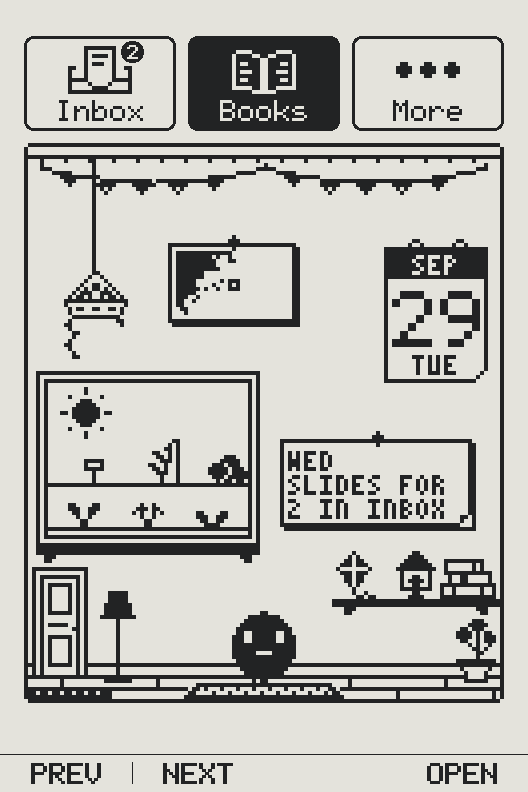
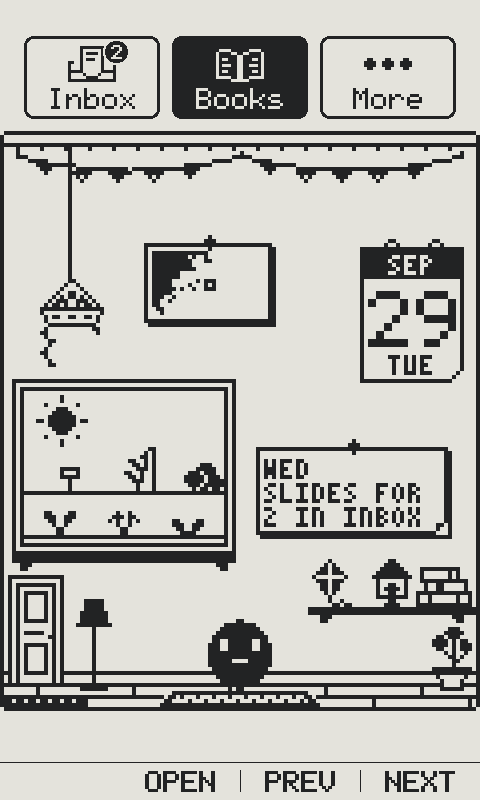
HomeDeckle’s room, with Books picked. -
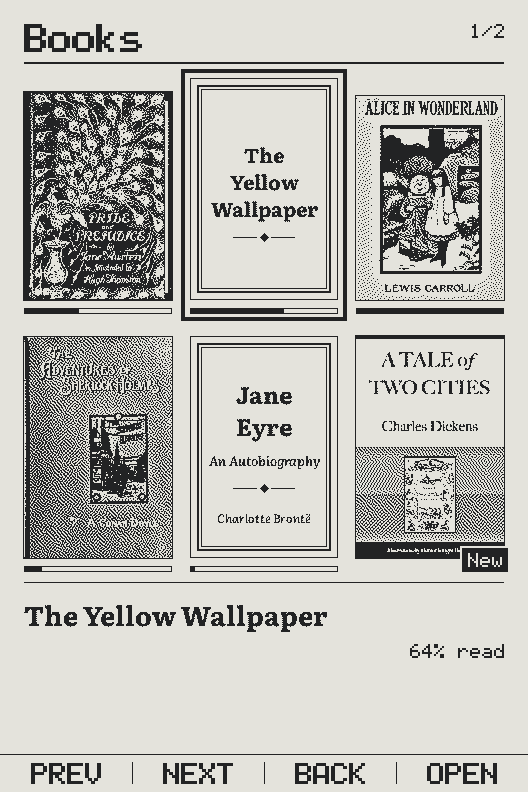
BooksThe ones on your card, as covers. -
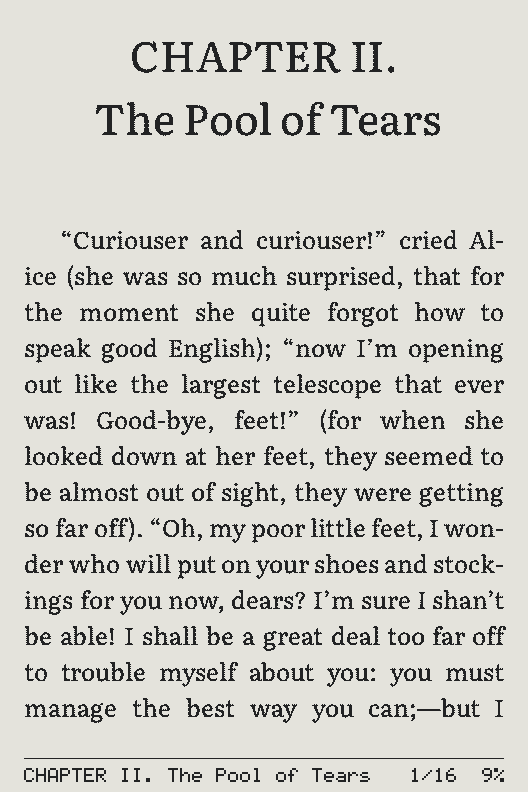
A pageSet properly, in Literata.
Build the screens you want.
Add pages of your own and rows that open them, pick feeds to follow, and add buttons that call a web address you choose. Your rows wait on More, one press from Home. No code needed, and the preview shows exactly what your X3 will draw.
- RowCoast trip
- RowThings to do
- RowWhat to cook
- RowWeekend weather
- RowA word a day
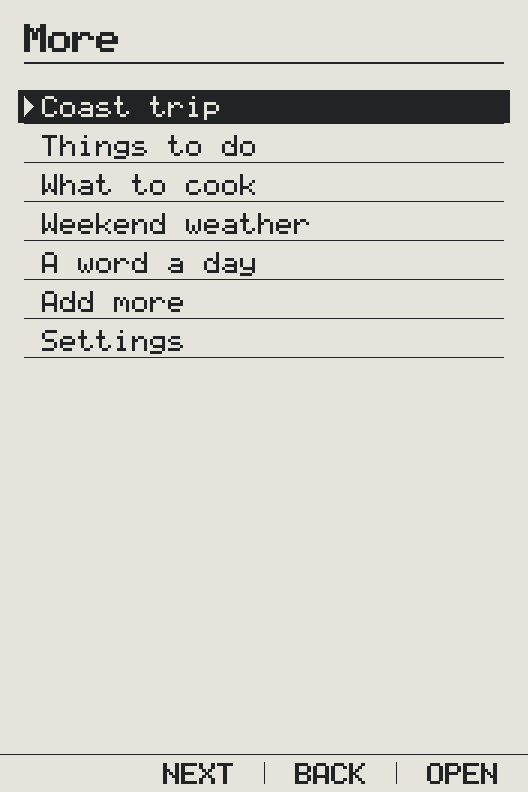
Every pixel, exactly as your X3 draws it.
Drawn by your X3’s own renderer. The words are samples; the pixels are real.
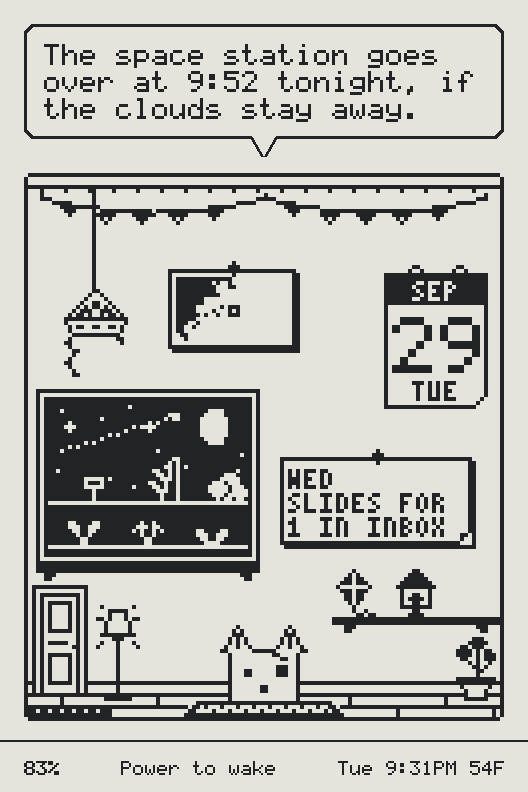
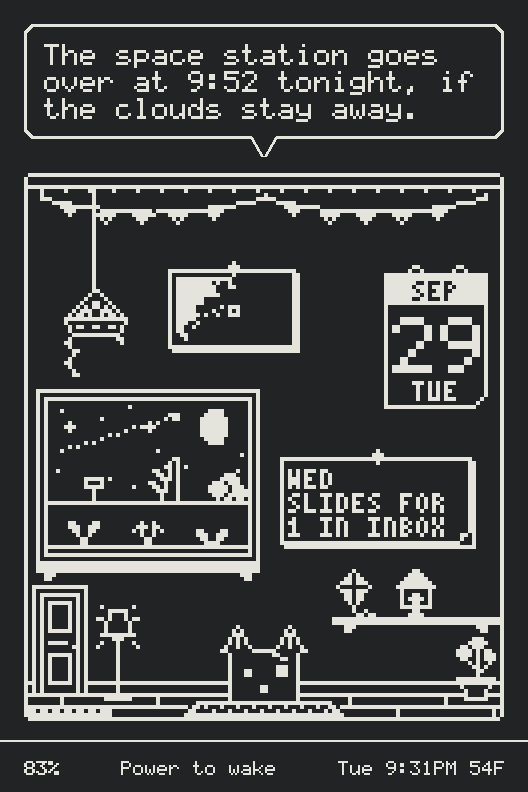
- 528 × 792pixels on your X3’s panel.
- One bitfor each pixel: ink, or paper.
- Light or darkTurn on dark mode in Settings on your X3, and every screen follows, including yours.
What Deckle reads, and what it keeps.
One person runs Deckle. Here is who can see what.
-
Read-only mail
Deckle opens your mailbox to read, never to send, delete or change a thing. Its copies are deleted after 14 days.
-
Passwords out of reach
App passwords and calendar links are encrypted and kept where no browser can read them back, not even yours.
-
See what it remembers
Read what Deckle remembers, in its own words, in the app, and make it forget whenever you like.
-
Honest about letters
Letters aren’t end-to-end encrypted. Your Deckle reads the ones you receive so it can draft replies.
-
Where you live, rounded
Your location leaves Deckle’s server only rounded to about 1 km, and only for the weather and sightings nearby.
-
Prints, not photos
A photo is developed on your phone, and only its one-bit print is kept. A small copy goes to Anthropic’s model once, for the caption, and isn’t kept.
Up and running in four steps.
About 15 minutes, start to finish, from a browser on your computer. The install guide walks you through each one.
-
Install the firmware
Plug your X3 into your computer and press Install in Chrome or Edge. The firmware it runs now stays in its other slot until Deckle’s first update.
-
Give it your Wi-Fi
Scan the code on its screen with your phone, or join the small network it opens, and choose your Wi-Fi.
-
Connect with a code
Scan the code on its screen: Deckle opens with it typed in. Or sign in and type the six-character code. Press OK on your X3, and it says hello.
-
Make it yours
Say where you live, choose Deckle’s look, and connect your mail and calendar, in the app.
You’ll need
- Your X3 and its microSD card
- Chrome or Edge on a computer, and a USB-C data cable
- A phone
- 2.4 GHz Wi-Fi
- A Google account
Good questions.
Anything else? The install guide covers the details, and the privacy page says what Deckle keeps.
How does Deckle work?
Deckle lives on a server, not on your X3. You tell it a little about yourself and connect a calendar, mail or feeds, and it gets on with its days. About once an hour your X3 wakes, fetches its finished screens over Wi-Fi and goes back to sleep. Wi-Fi is off while you read.
No model runs on the X3. Deckle’s words are written by Claude, on the server, and you can’t swap in a different model, though you can add your own Anthropic key.
Which devices does Deckle work on?
The X3, the X4 Classic and the X4 Pro. The X4 isn’t ready yet: there’s a memory problem to fix first, and we’ll post on the community board when it is. Deckle doesn’t run on other e-readers.
What’s different on the X4 Classic?
Deckle is the same, laid out for its taller screen: on Home, Deckle’s room fills it from edge to edge. Its keys work as they’re labeled, and it reads the same books.
It installs from the same page, with one extra step: you start it in its download mode by hand, because its own firmware doesn’t answer over USB. The installer always saves a full copy of it first, and later updates come over Wi-Fi, made for the X4 Classic.
What’s different on the X4 Pro?
Deckle is the same, laid out as on the X4 Classic, and you can tap what you want on the screen as well as use its keys. Its light is a tap of Power, and a swipe down from the top, or Settings, sets how bright and how warm it is.
It installs from the same page, the same way as the X4 Classic: you start it in its download mode by hand, and the installer always saves a full copy of it first. Later updates come over Wi-Fi, made for the X4 Pro.
Will it work on my X3?
Yes. Most X3s install over USB. Some, especially ones from AliExpress, had installing over USB switched off at the factory, for good: if yours never answers when you press Connect with a data cable, it’s probably one of those, and nothing is written.
Those can still take Deckle from the memory card. Download deckle-x3.bin, rename it update.bin, put it at the top of the card, and let XTEINK’s original firmware install it. Then carry on from step 2. You can’t save a full copy this way, and we’ve only tried it from the original firmware, not CrossPoint.
Can I still read books?
Yes. Deckle opens the books already on your X3’s memory card, EPUB without DRM and plain text, as a grid of their covers, up to 10,000 of them, with Find (a word of a title or author) and Browse (authors, series, reading now, finished). They’re set in Literata, justified or left-aligned, with English hyphenation. There are contents, five text sizes and Go to, and waking your X3 opens your page.
Wi-Fi is off while you read, and no title or place in a book leaves your X3 (only how many you finished this year), so there’s no KOReader sync. Books with DRM, from a store, won’t open.
Send books from the app: EPUB, MOBI, AZW3, FB2, Word and more without DRM, up to 30 MB; small ones come the next time you wake your X3, big ones on its charger. Not yet: XTEINK’s own .xtc books, bookmarks, footnote links, or most PNG pictures.
Is it safe for my X3?
The installer never touches the part of your X3 that starts it up. It puts Deckle in the slot your X3 isn’t running, keeps the firmware it runs now, the original or CrossPoint, in the other, and checks every write.
It can also save a full copy of your X3 first, which puts it back exactly as it came.
Only firmware signed by Deckle installs, from this site and later over Wi-Fi, and an update that doesn’t settle in goes back by itself.
Can I go back to the original firmware?
Yes. Until you accept Deckle’s first Wi-Fi update, the firmware your X3 ran before Deckle is still in its other slot, and the install page switches back to it with one button. Without a computer, hold a side key and Power while you switch your X3 on.
That update asks before it goes ahead, because it replaces that firmware. After it, the full copy from the installer, if you saved one, puts your X3 back as it came. Restoring it takes one terminal command, which the install guide gives.
On an X4 Classic or X4 Pro, the install page’s Switch back does the same, and the full copy it always saves first puts it back as it came.
What about battery?
Your X3 wakes about once an hour to refresh Deckle’s room. It stops waking below 20% battery, or when it hasn’t been picked up for about four days. You’ll charge it more often than a plain reader. To make a charge last longer, set Wake to refresh in Settings on your X3 to every four hours, twice a day, or never.
Why is it free?
One person runs Deckle, as a personal project. Installing it and using it are free, and the person who runs it pays for the free allowance below.
If you’d rather pay your own way, add your own Anthropic key.
What’s the free allowance? And what’s Claude?
Deckle’s words, like your morning paper, answers to what you ask, sorting your mail and drafting replies, are written by Claude, an AI model made by Anthropic.
Up to 25 thoughts a day per X3 — each briefing, answer, set of replies, dream, photo caption or letter from Deckle is one (sorting your mail doesn’t count) — while the shared budget lasts. After that Deckle rests until midnight UTC and new mail waits unsorted. Add your own Anthropic key, billed to you, to remove the limit.
What if Deckle stops?
Your books keep working: they never touch the server. The room stops changing, and you can set Wake to refresh to Never. Your X3 still takes any firmware over USB, and the full copy, if you saved one at install, puts it back as it was.
Is the code open?
Not yet. The plan is to publish the firmware once it settles. It’s built on the FreeInk SDK, which is MIT-licensed.
Does it need my Wi-Fi password?
Your X3 does, to fetch its screens. You type it on your phone, on a page your X3 shows through its own small network, and it’s saved on your X3, never sent to Deckle. It needs a 2.4 GHz network.
What does Deckle do with my email?
It opens your mailbox read-only, looks for new mail every 15 minutes, and sorts it into what needs you and what can wait. It never sends, deletes or changes anything, it skips Gmail’s Promotions, Social and Forums tabs, and its copies are deleted after 14 days.
Gmail connects with an app password, which you can revoke at any time.
Give your X3 a quieter job.
About 15 minutes, start to finish, from your browser. The installer can save a full copy of your X3 first, so you can always put it back as it came.